Visualizing data
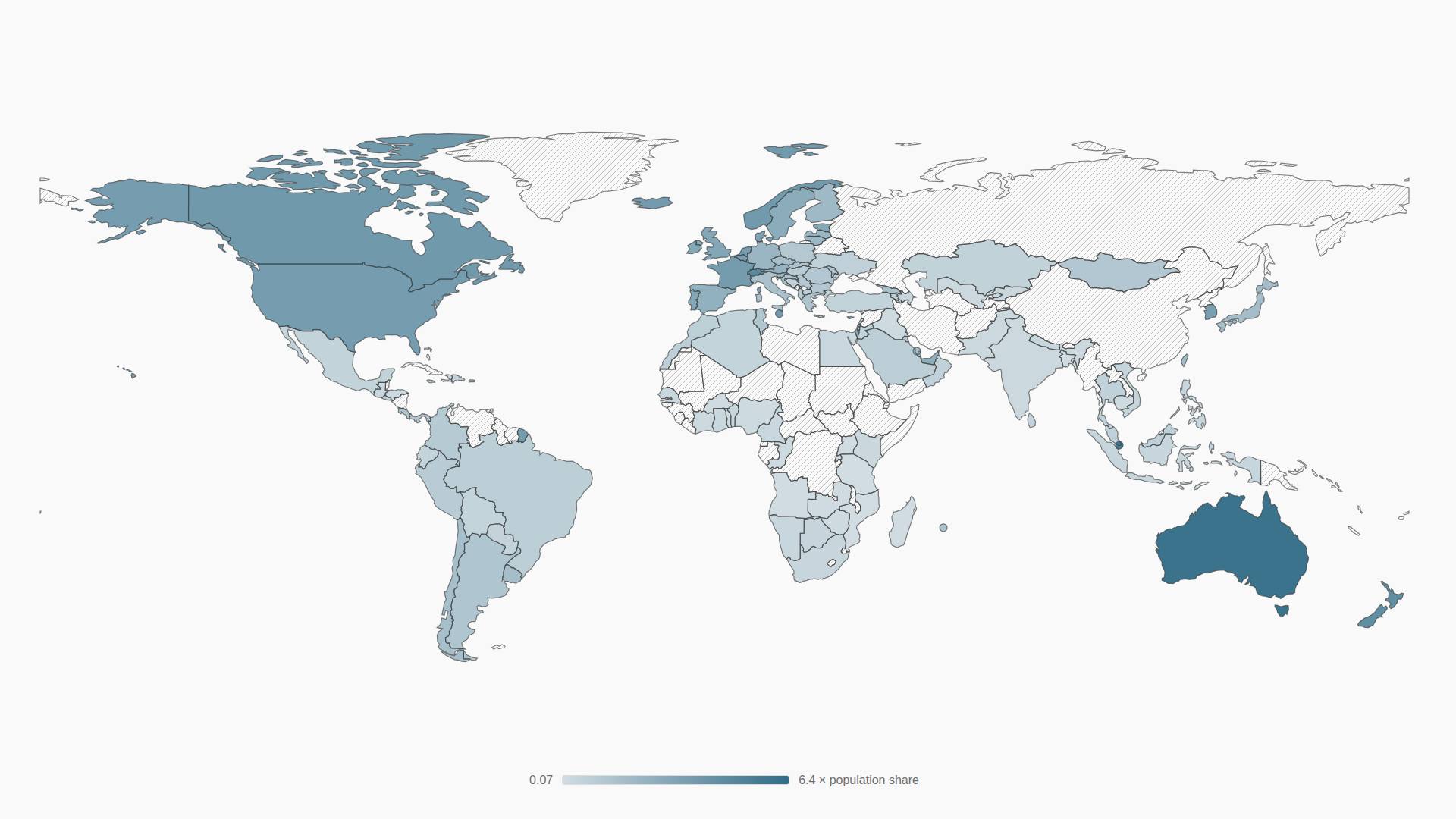
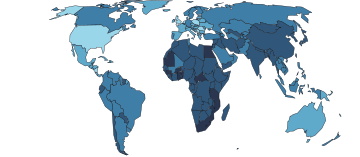
“Show me AI usage by country on a world map.”
 Try Kanvas
Give the agent you already use a screen.

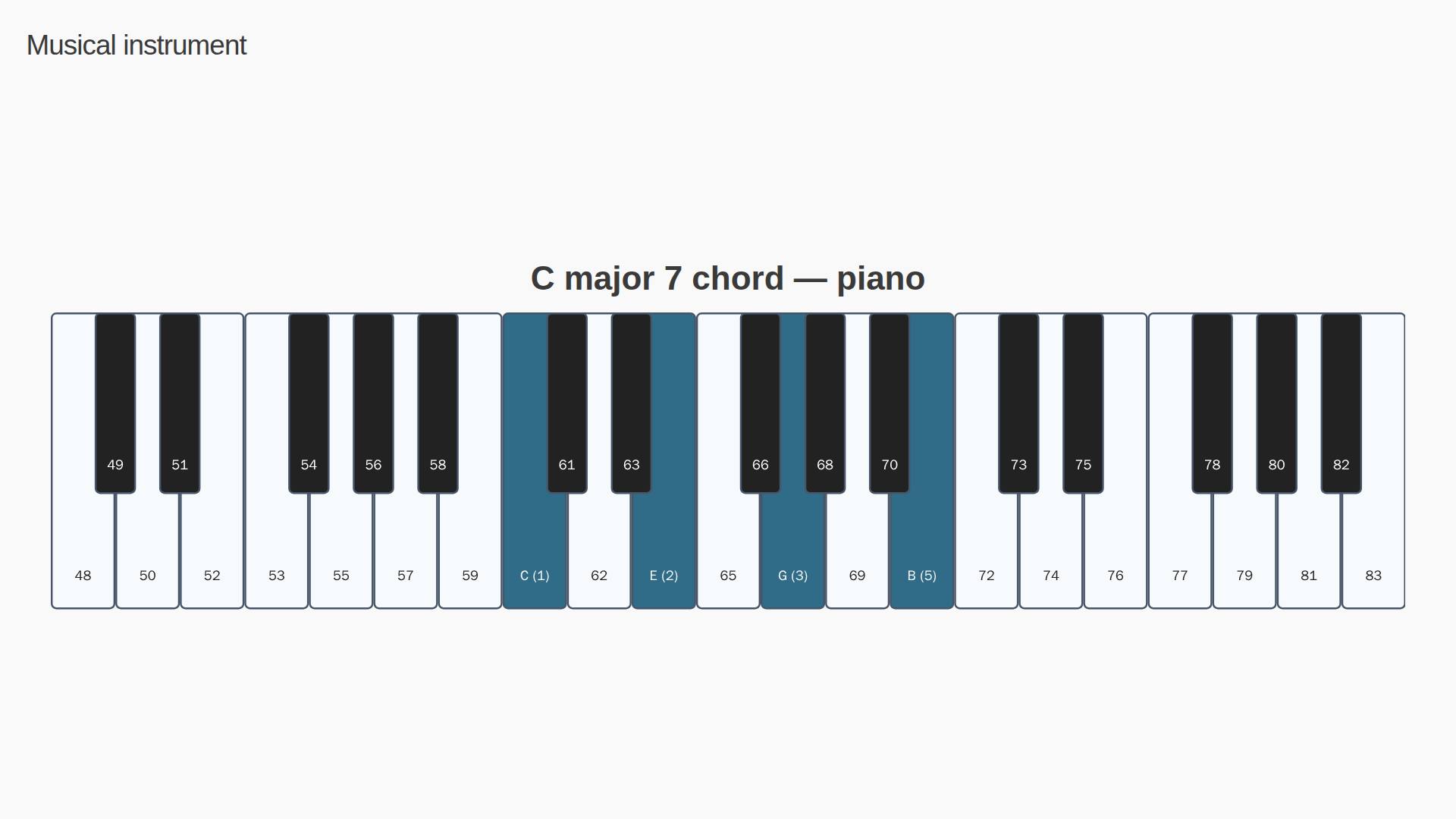
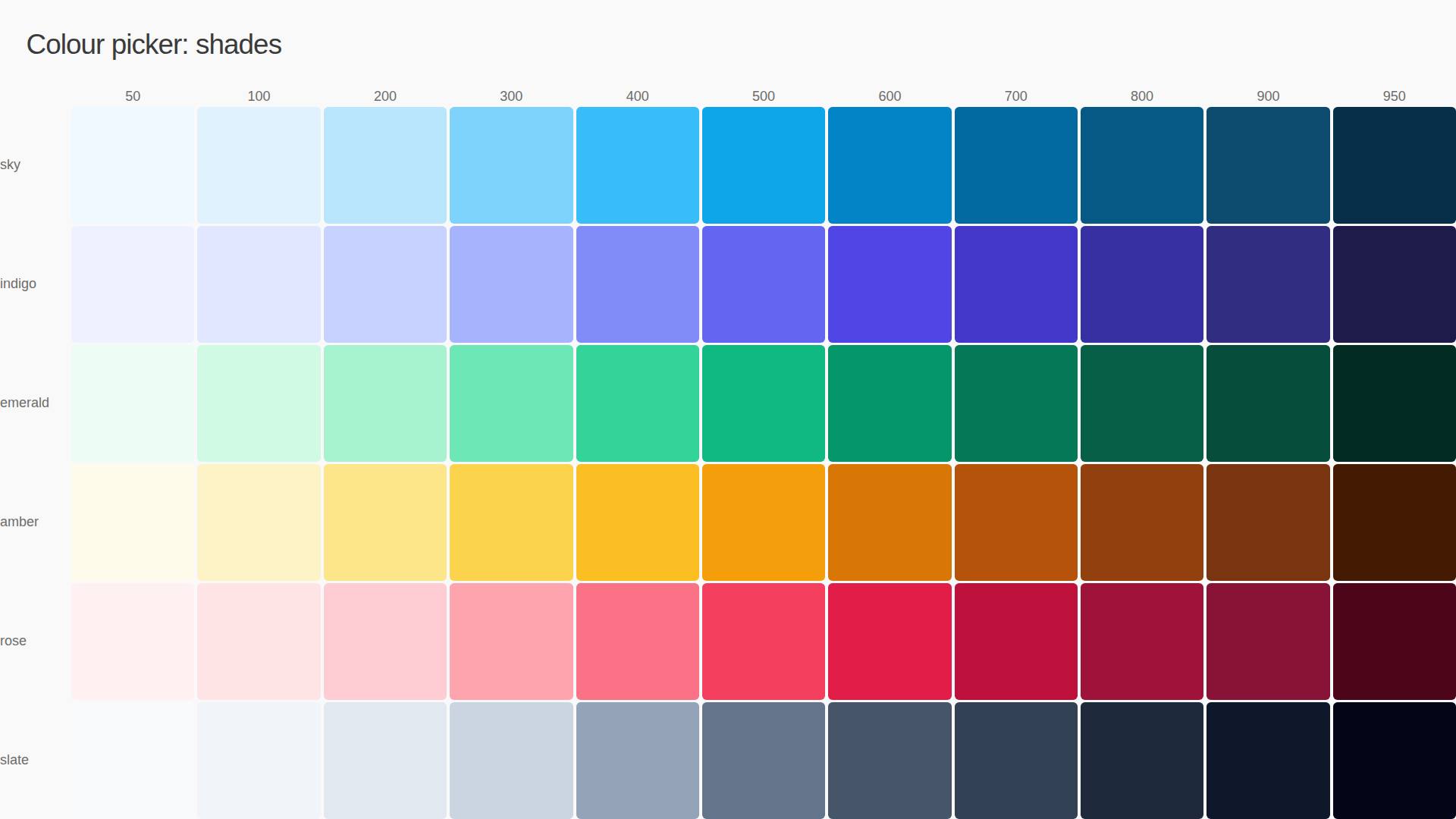
Kanvas gives your AI agent a screen. Instead of reading walls of text in a chat window, your agent shows you what it means — a chart, a diagram, a checklist — on any display you point it at.
It's a new way of working. You're not opening an app and clicking around; you're asking your agent for something, and it decides how best to show it to you. That takes a little getting used to. Once it clicks, though, it's hard to go back.
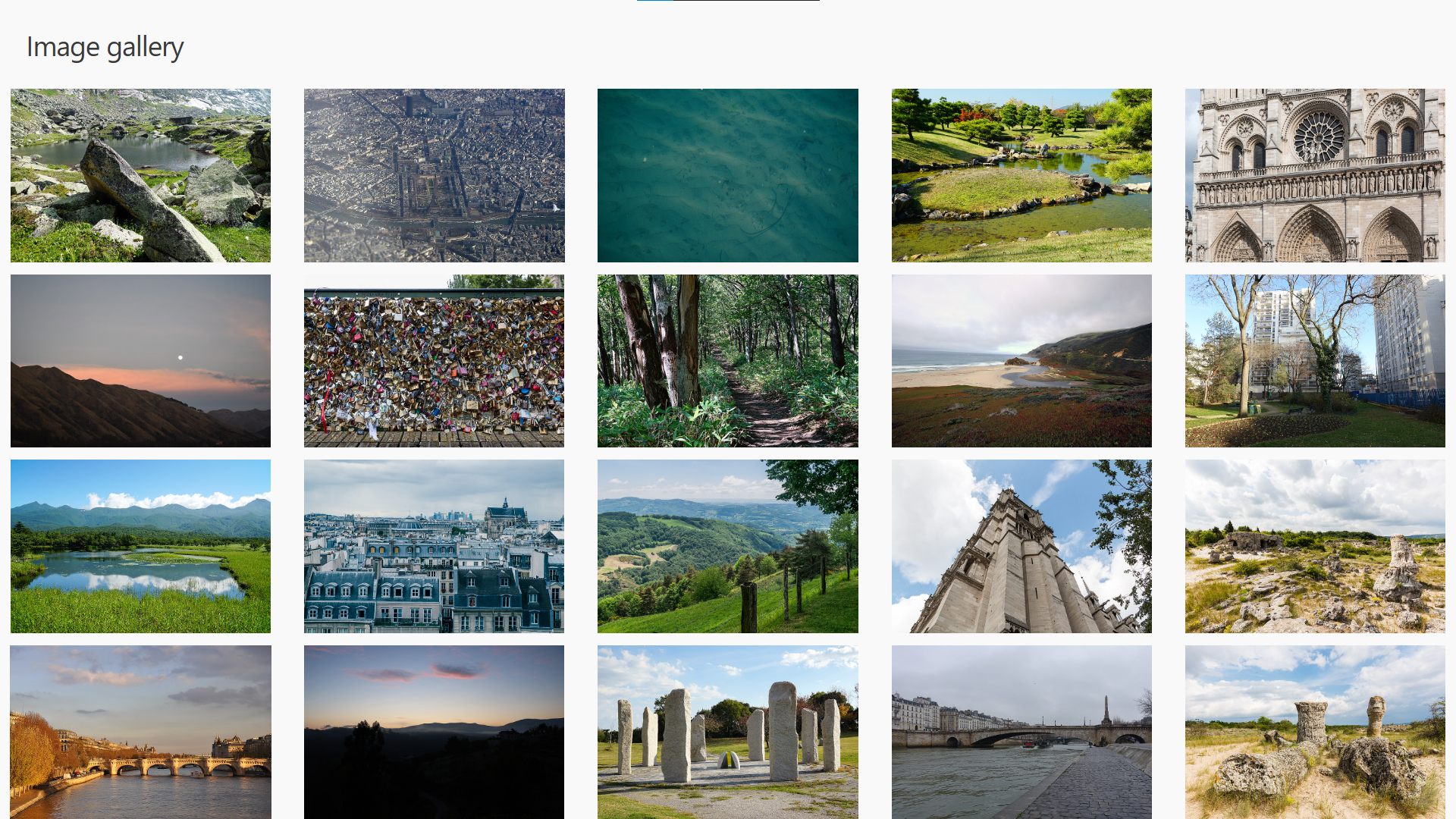
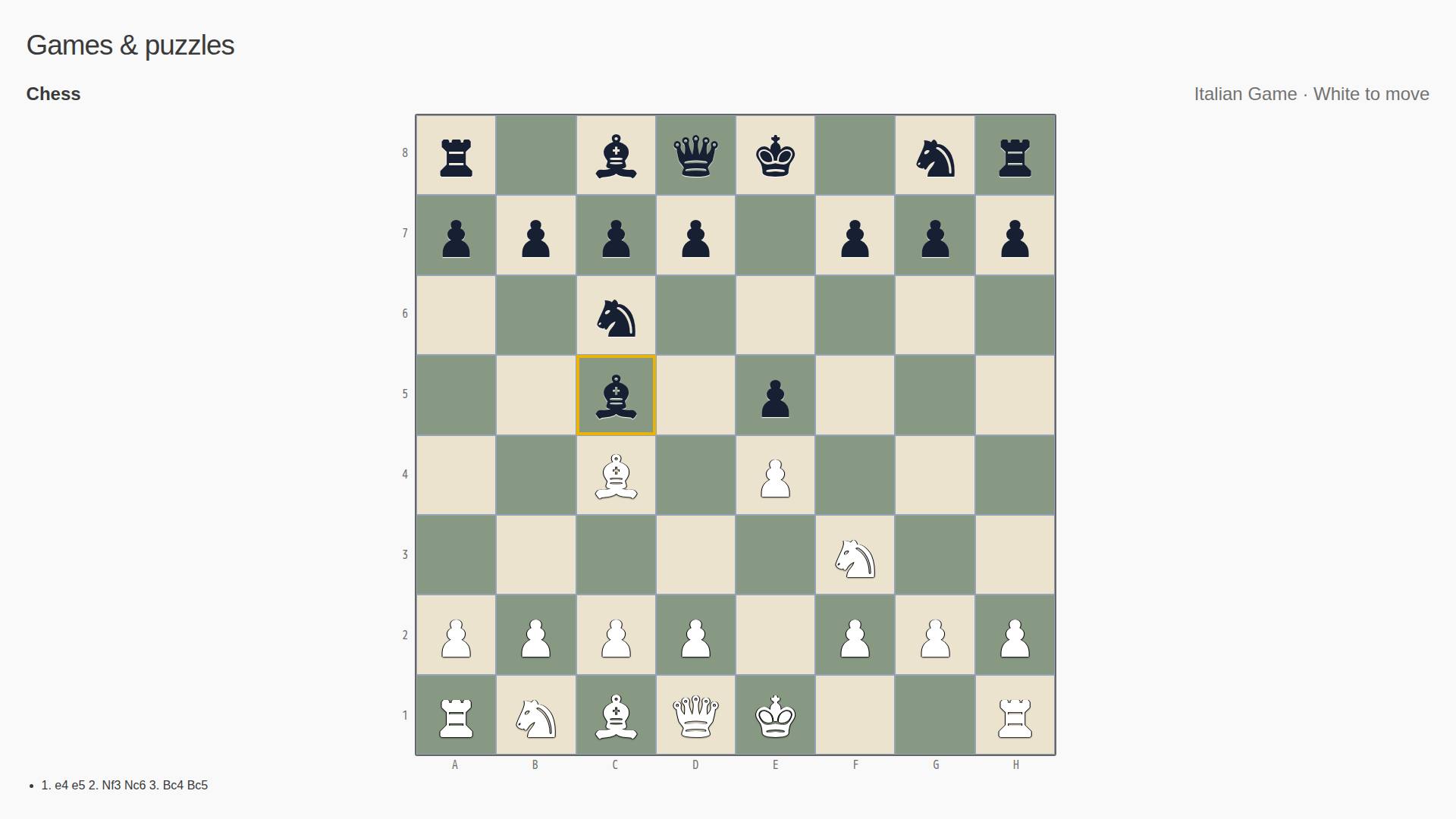
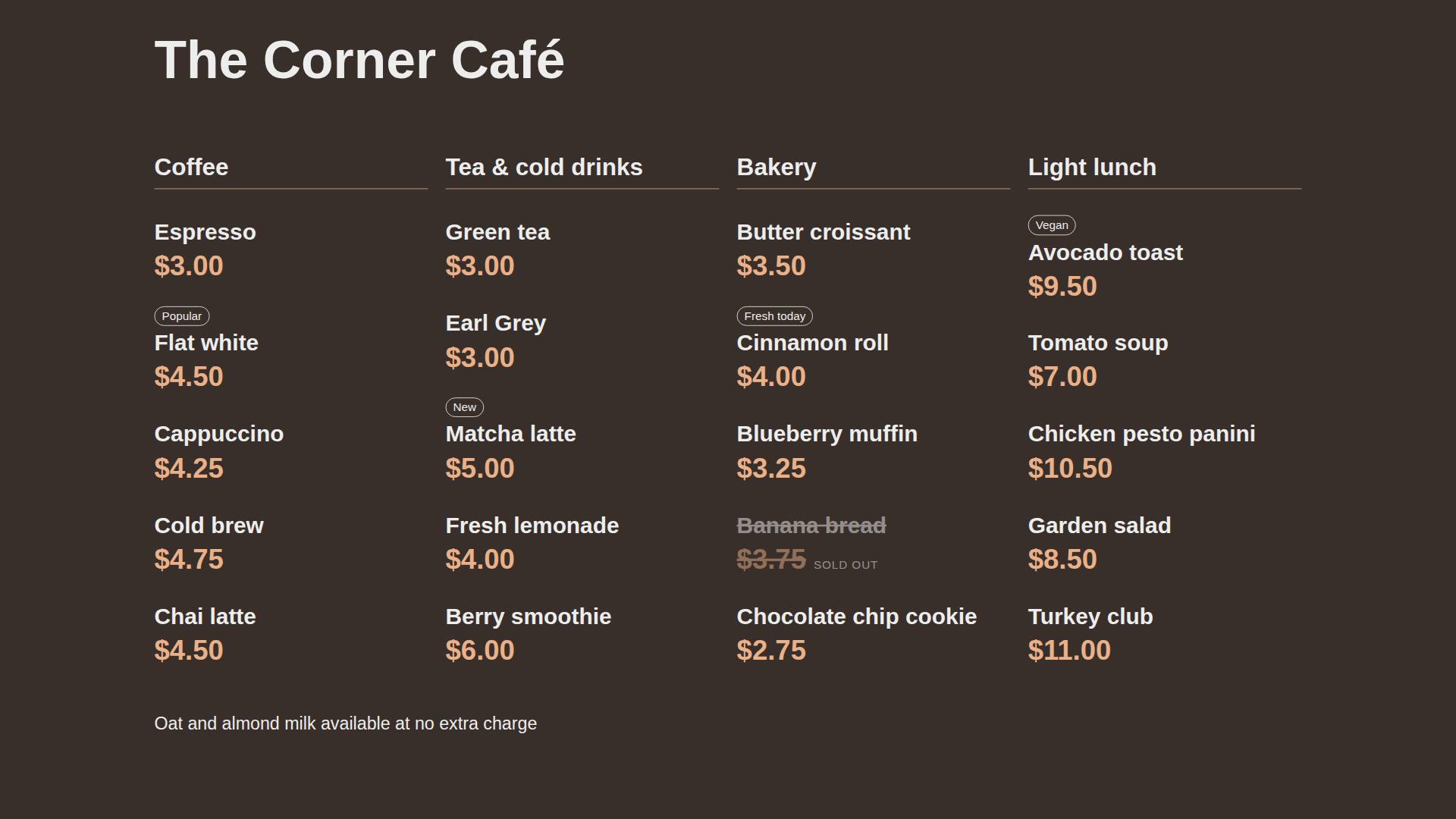
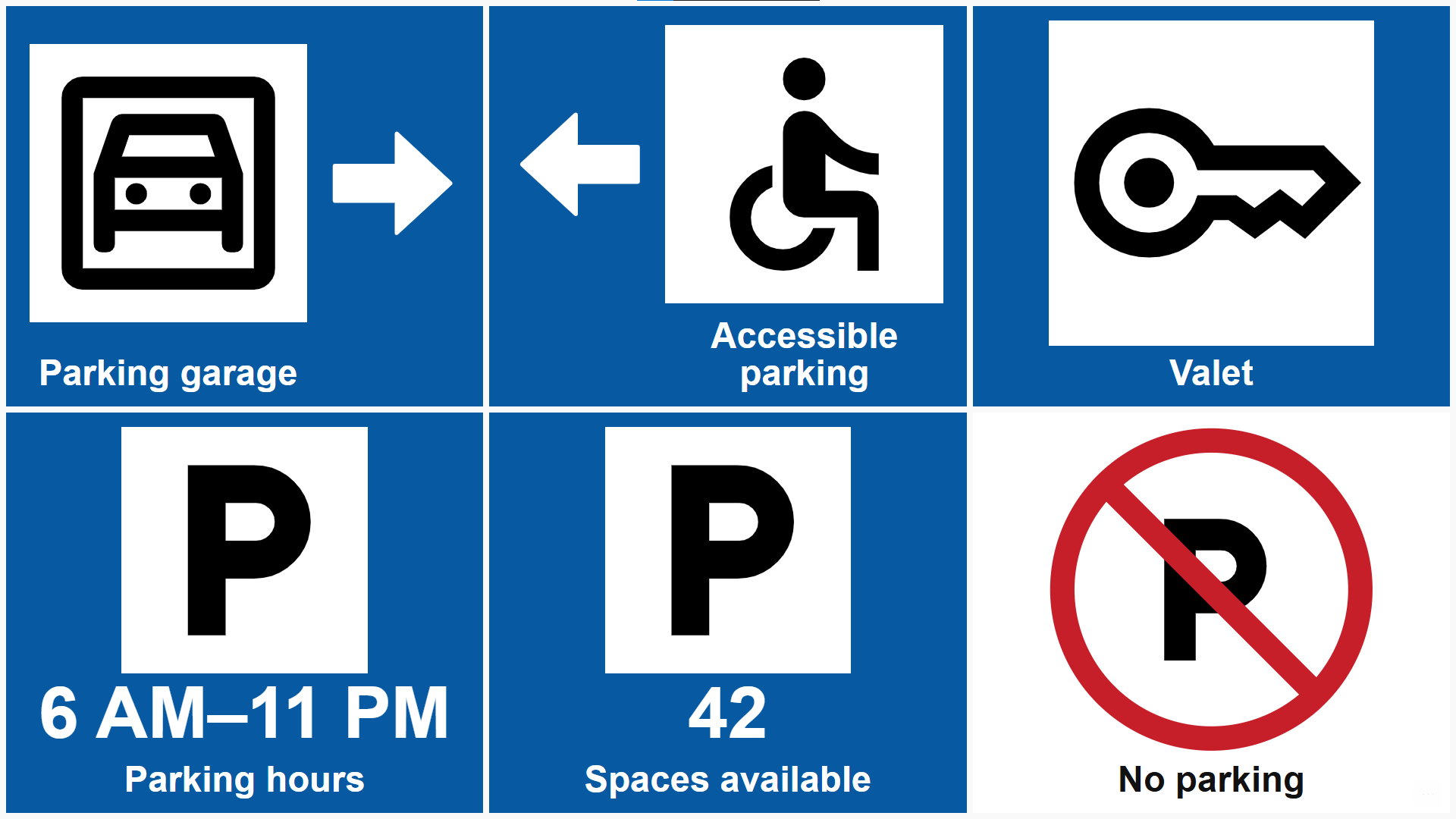
There's no AI inside Kanvas. Your agent is still your agent — it does the thinking, decides what's worth showing and how to show it. Kanvas is the visual interface it reaches for: a set of templates built for fast, low-latency interaction, so what your agent sends appears on screen in a moment, not after a long render. Any agent can build a custom page from scratch; Kanvas is for the pace of a live working session. That same speed also makes it a good fit for quieter jobs: a day's schedule outside a meeting room, a photo gallery in the living room, today's specials in a café, a shared chore list in the kitchen, or a scoreboard at the club. Set it once, and let your agent keep it current.
Say what you need.
Say where you want it.
“Show me AI usage by country on a world map.”
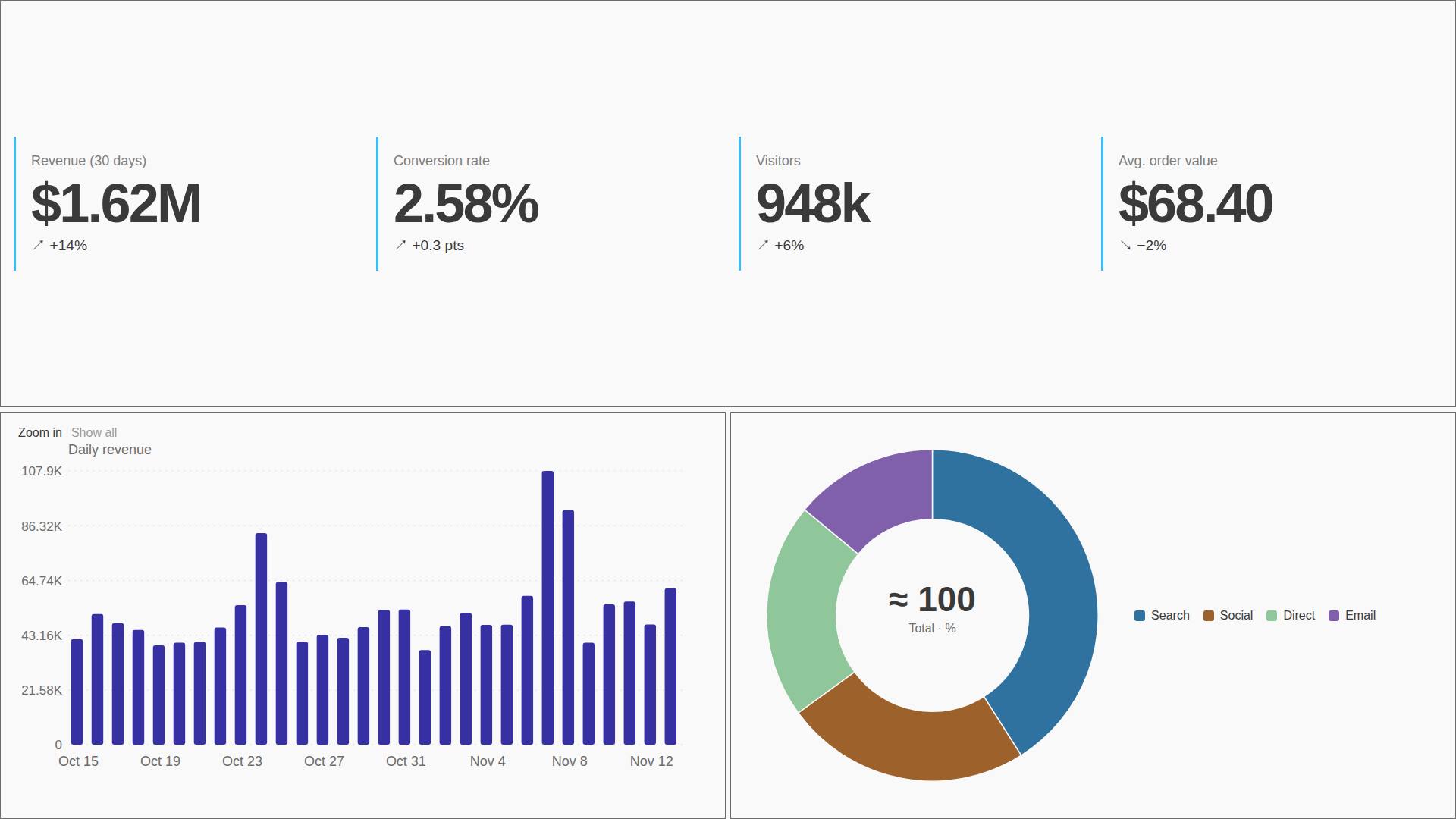
“Show us our KPIs and revenue for the last 30 days.”
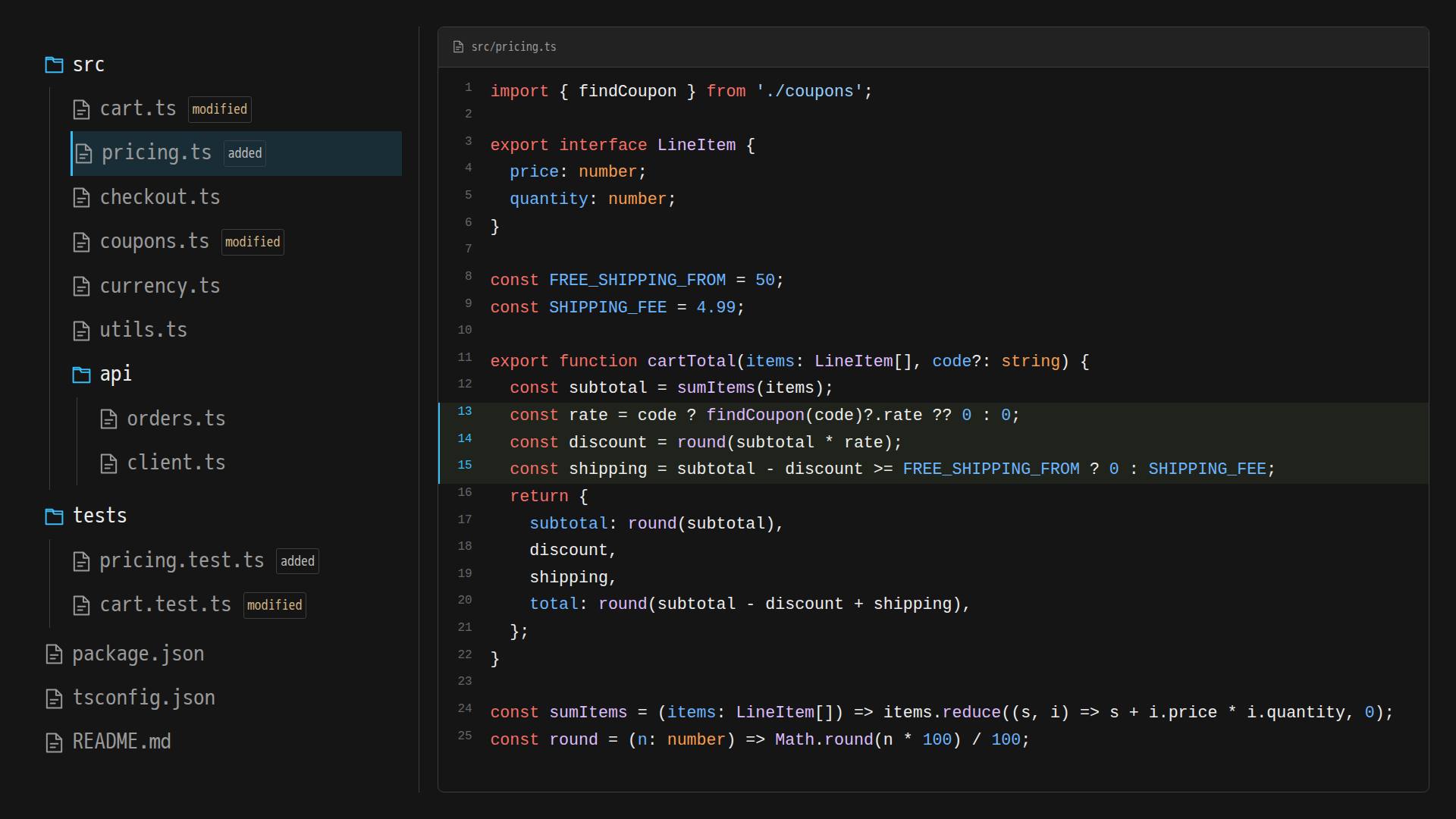
“Walk me through this PR and highlight the most important change.”
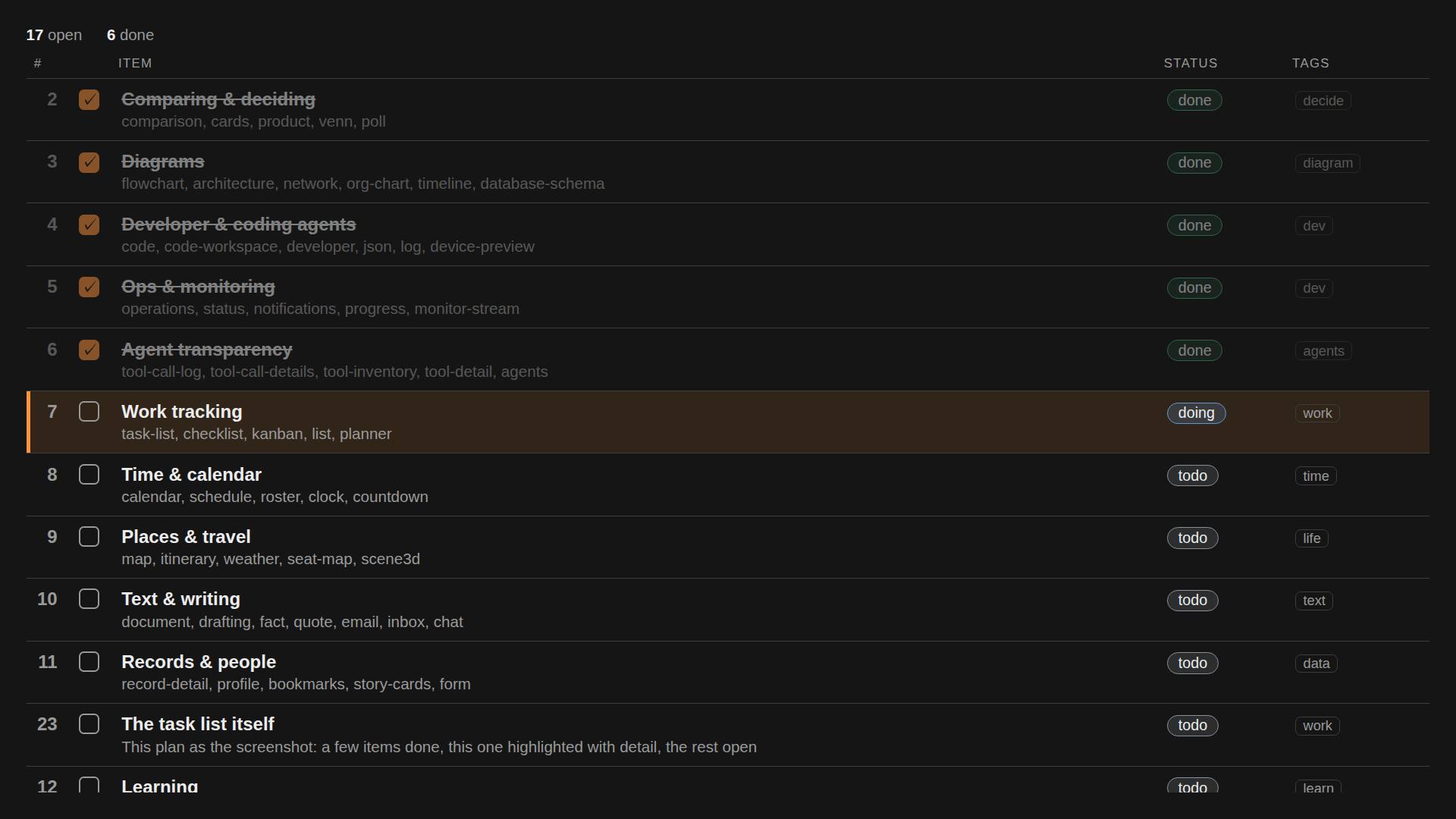
“Pull up today's list and let's work through it. Check off what's done.”
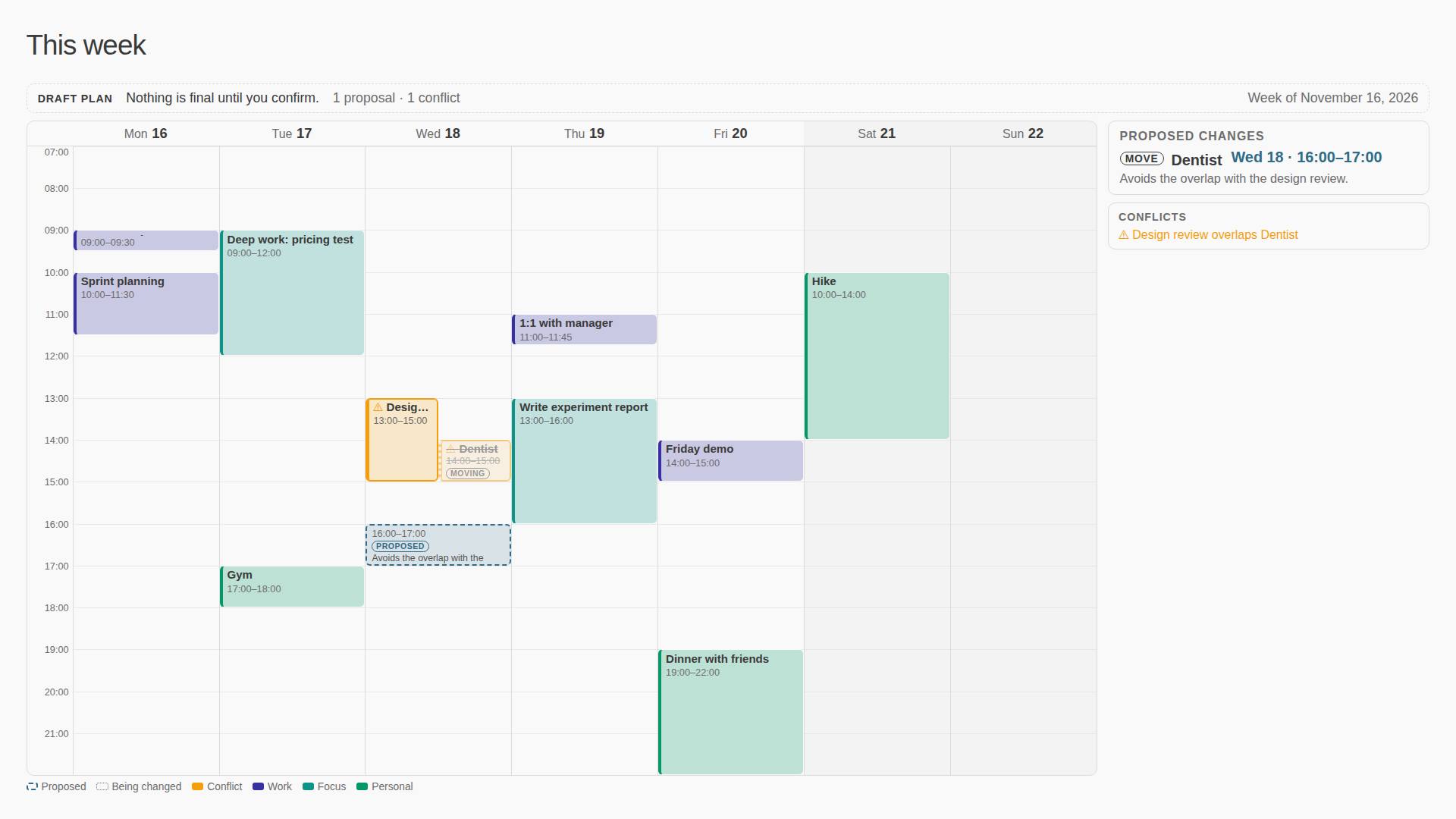
“Show me my week and sort out any conflicts.”
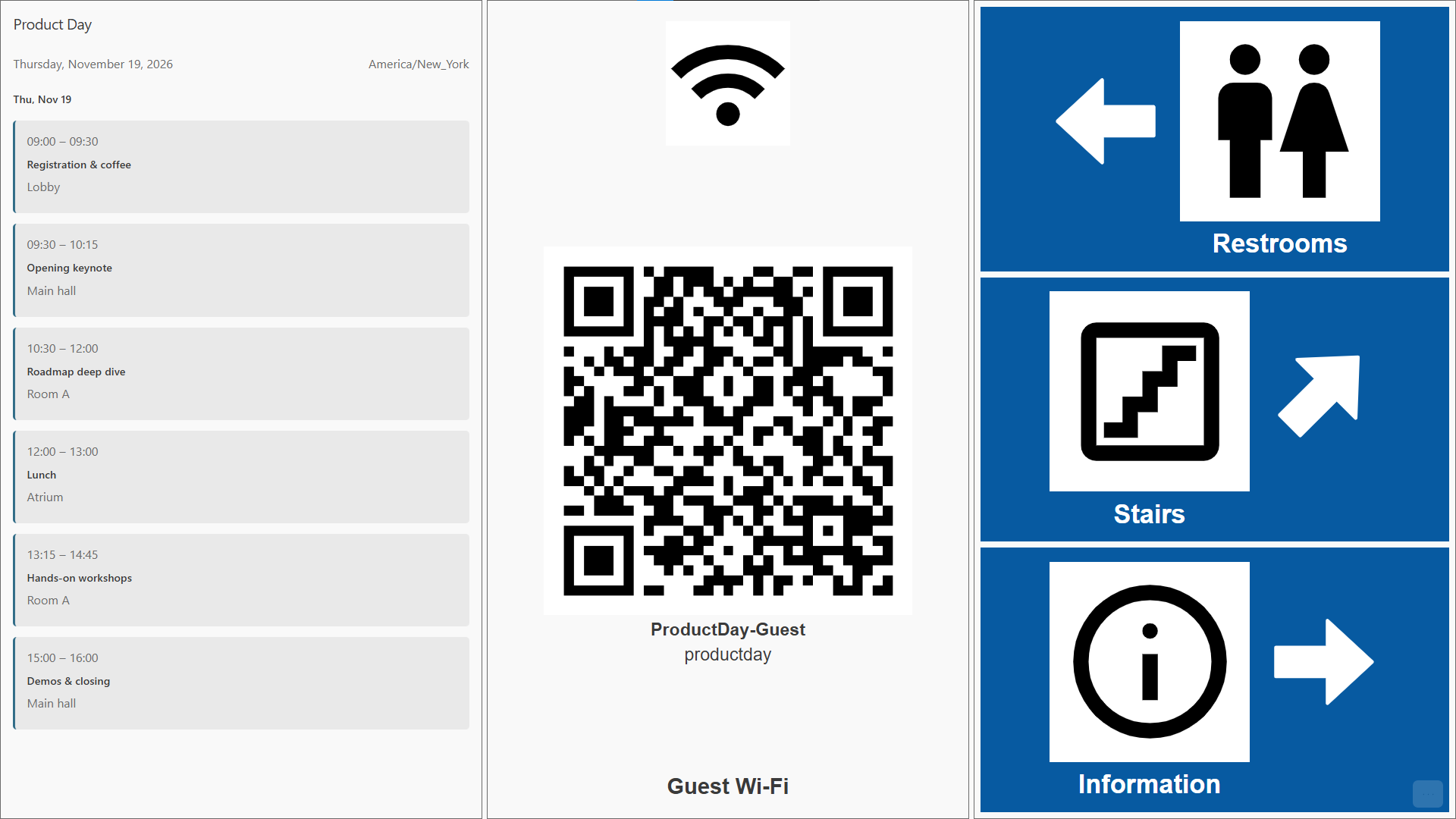
“Put today's agenda, the Wi-Fi code and directions for guests on the lobby screen.”
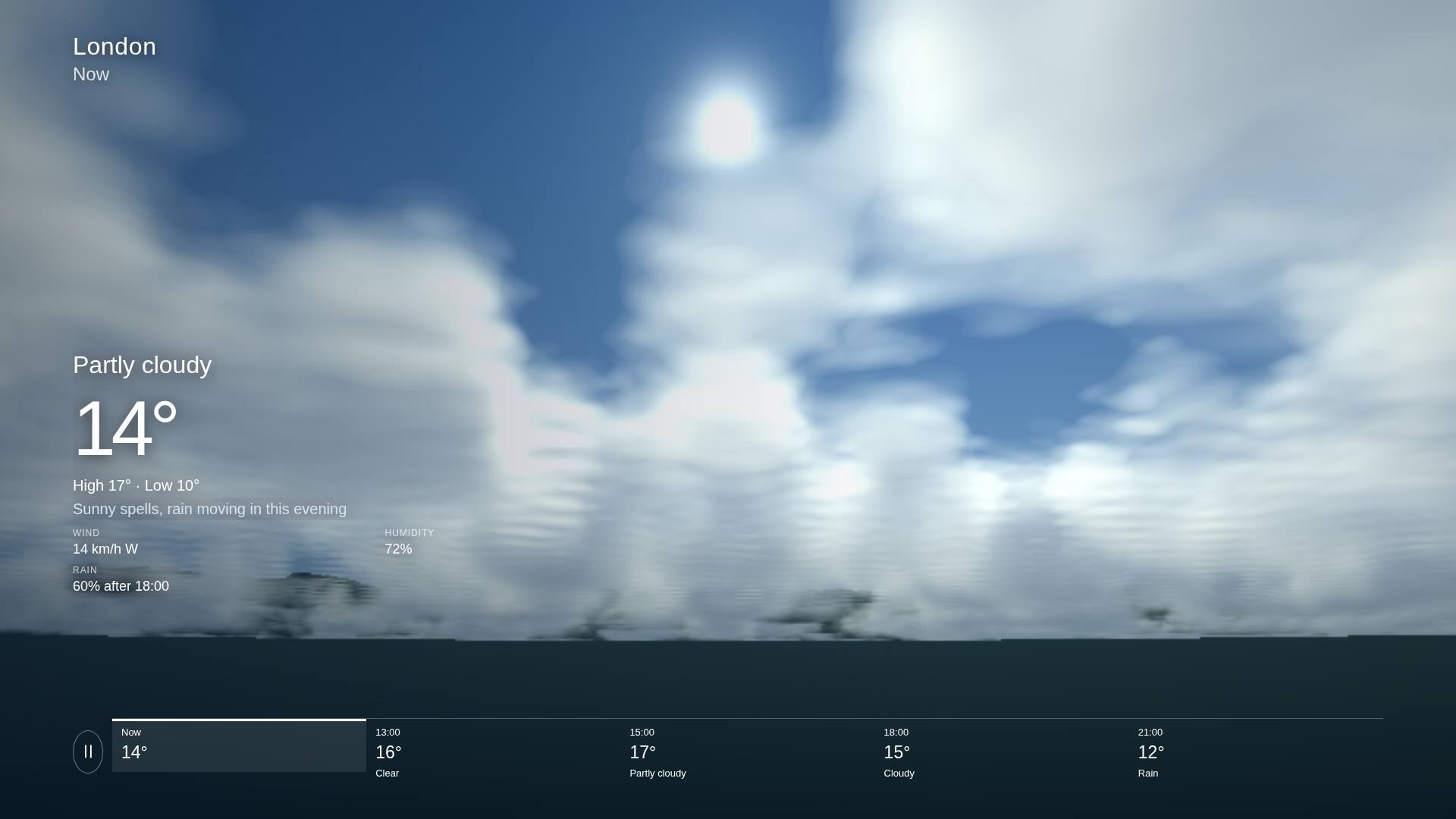
“What's the weather tonight? Put it on the hallway screen.”

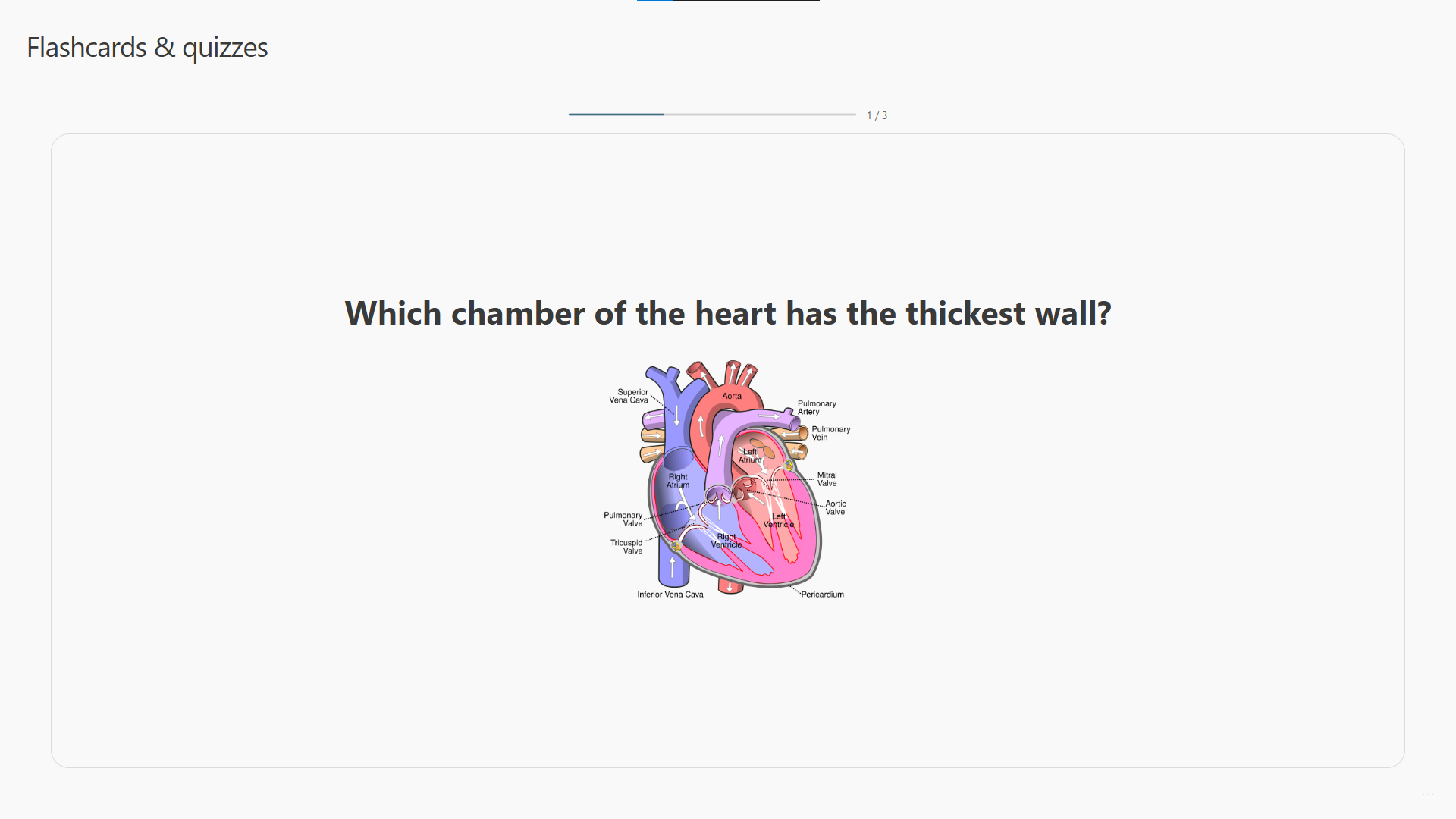
“Quiz me on the anatomy of the heart.”
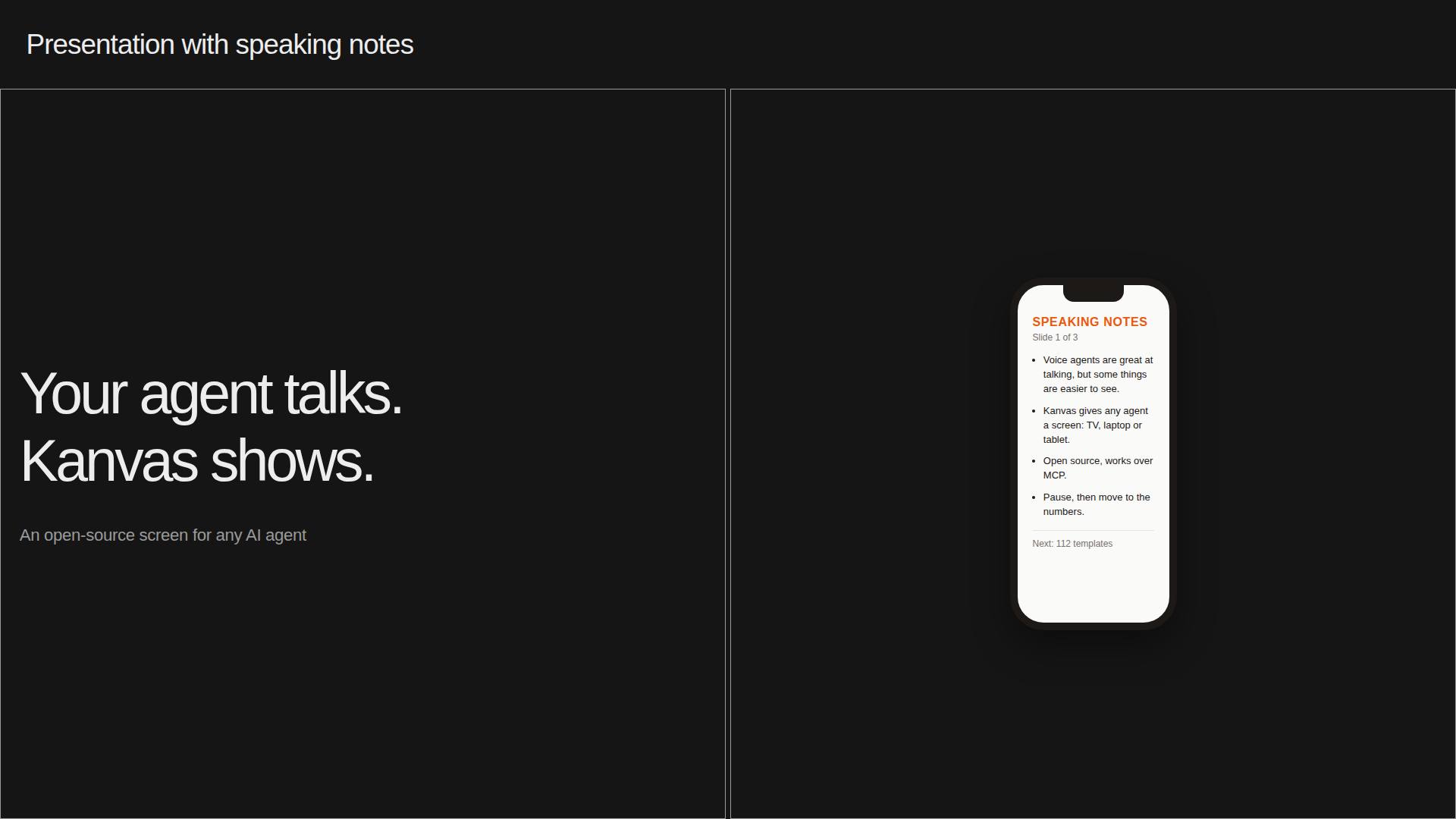
“Put my slides on the monitor and my speaker notes on my phone.”
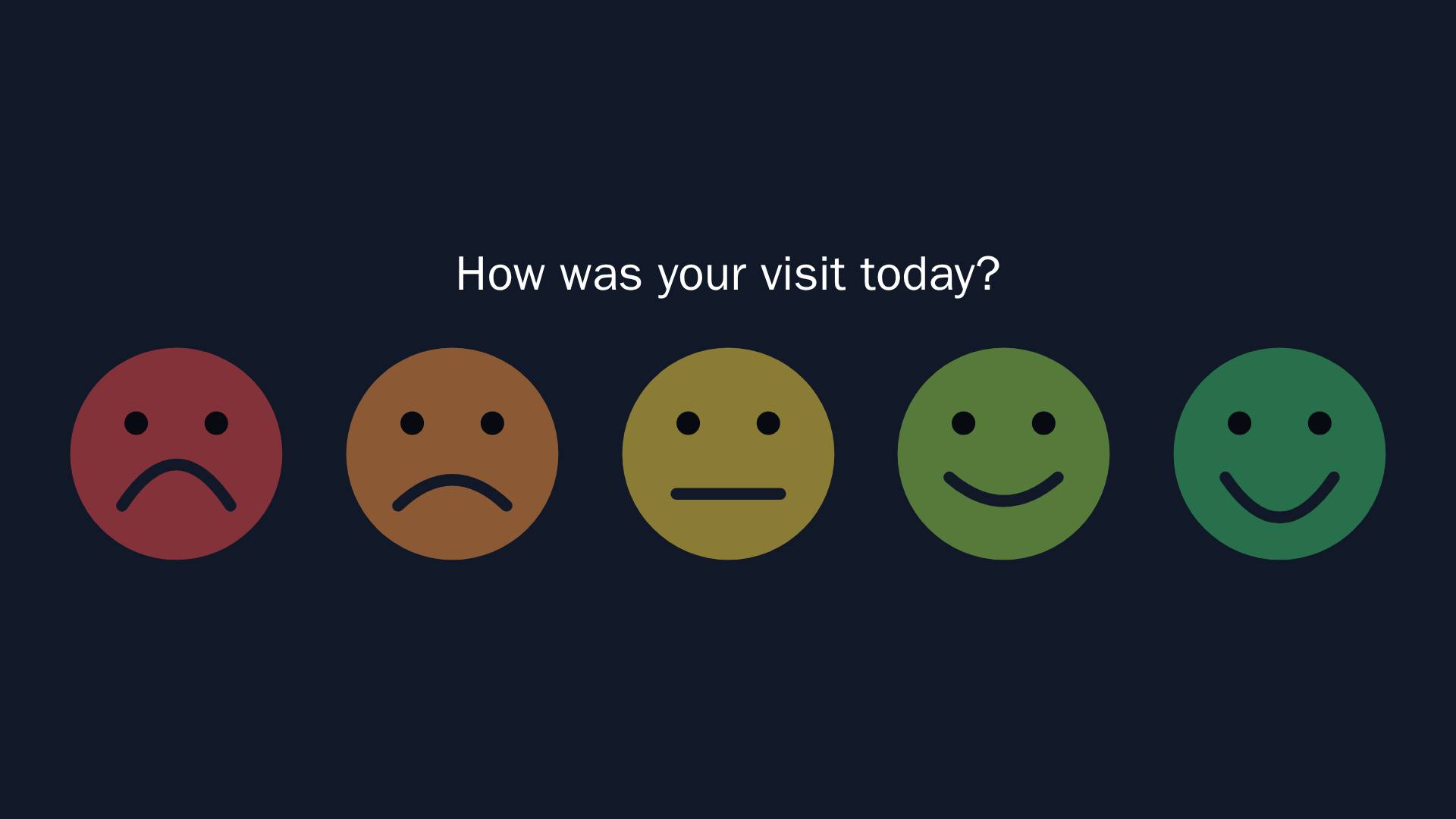
“Put a smiley-face rating on the touchscreen by the door.”
Run this in your project directory:
claude mcp add --transport http Kanvas https://kanvas.host/mcpThen open Claude Code, run /mcp, select Kanvas, and follow the sign-in and authorization prompts.
Add the server, then sign in:
codex mcp add Kanvas --url https://kanvas.host/mcp
codex mcp login KanvasComplete the browser sign-in and approve access. In Codex, use /mcp to check the connection.
Ask your agent:
Connect to the Kanvas MCP server at https://kanvas.host/mcpYour client needs remote HTTP MCP and OAuth support. Add the URL in its MCP settings if it cannot configure itself, then sign in and approve access.
Try "show me on Kanvas" instead of "tell me."
Start by exploring Kanvas together with your agent. Ask it what Kanvas can do, what templates are available, or what it would show you for a task you have in mind — the agent can look this up itself. The better you both understand what Kanvas is for, the more useful it gets.
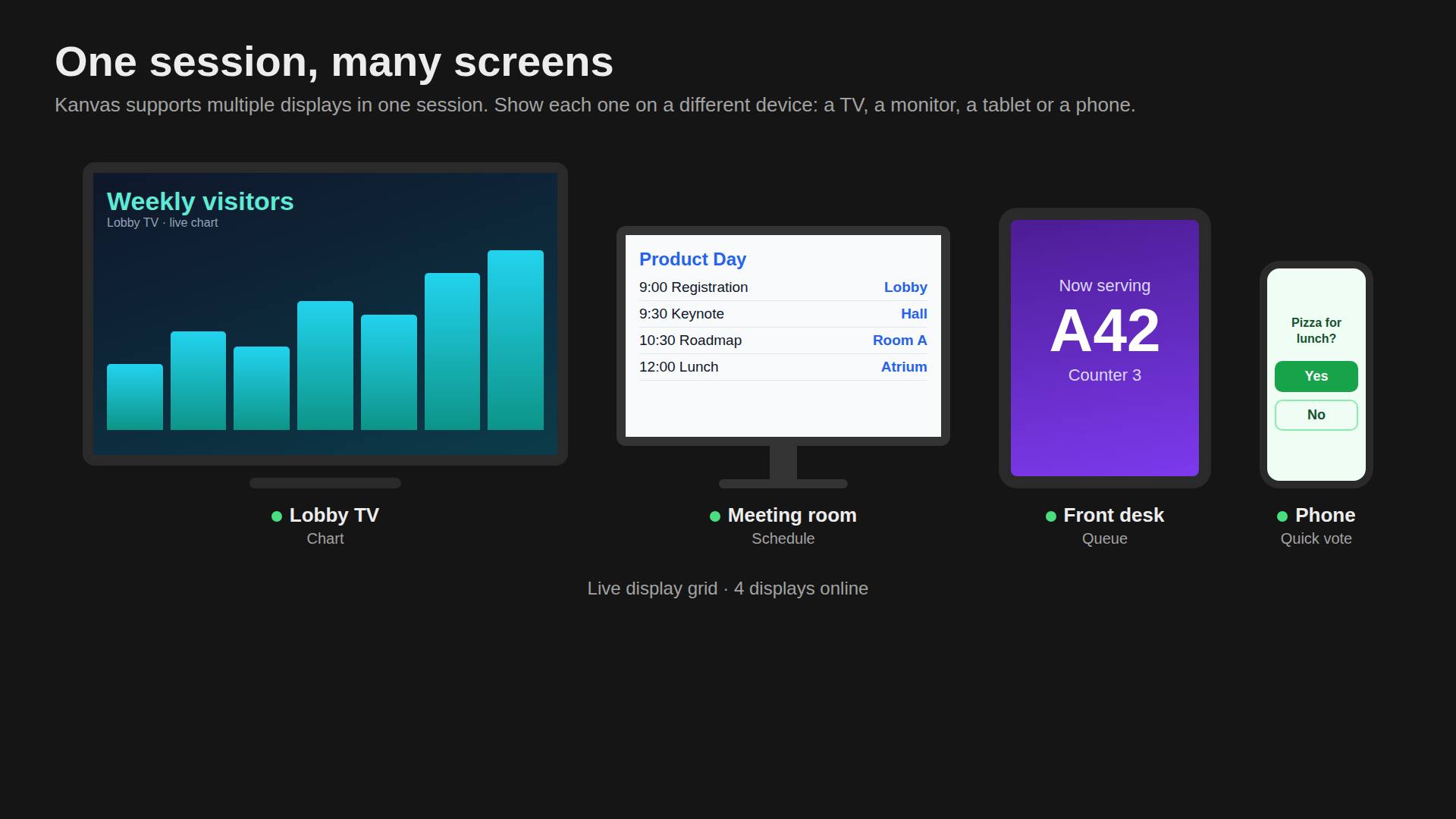
Point your agent at a real screen — a second monitor, a tablet, a TV — and let it stay open while you work. You're not limited to one, either: Kanvas can keep a chart on the wall, a plan on your tablet, a running draft on your laptop, and your speaking notes on your phone, all at once.
A faster path through the cache.
Kanvas works with any AI agent that supports MCP ("connectors"), including in a regular chat interface — but it really shines in real-time voice sessions: you talk back and forth with your agent, and Kanvas becomes the complementary visual screen, showing charts, diagrams, and other visuals relevant to the conversation as it happens.
Your experience depends on what your agent can reach. Kanvas on its own, with nothing else connected, is a bit like the early days of chatbots — impressive, but cut off from your actual work. Connect your calendar, email, database, documents, spreadsheets, CRM, issue tracker, code repositories, analytics, design files, or whatever tools you use, and Kanvas becomes the screen for all of it: the place your agent shows you what it found, what it changed, and what's next.
Start with the hosted version at kanvas.host ↗.
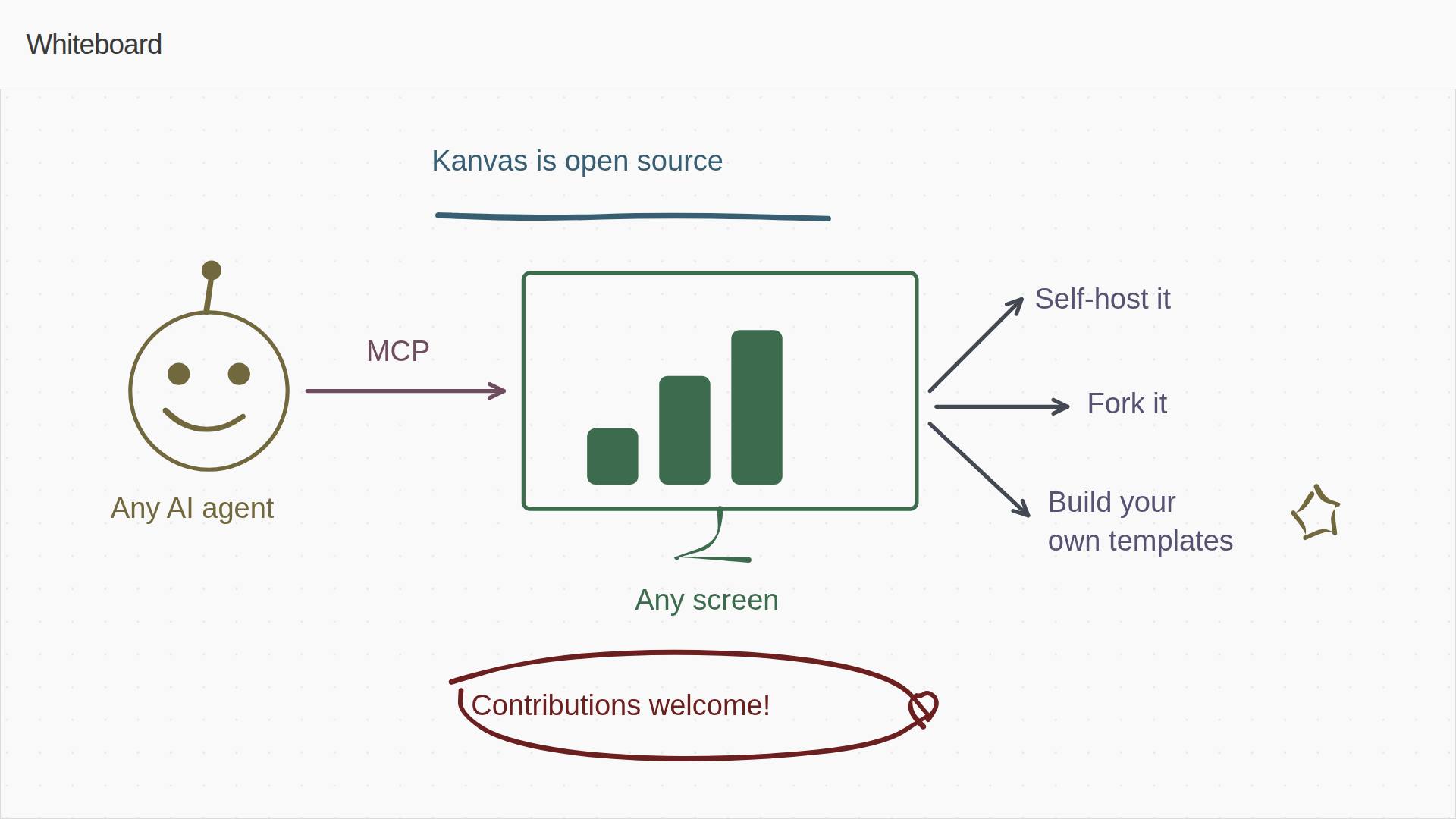
Or self-host. Kanvas is open source.
Your agent. Your screen. Your Kanvas.